Features · Subscribers
A subscriber list you can actually work with.
See who opted in and when, what browser and country they came from, and whether their device is still reachable. Tag them however your business thinks about people, then turn those tags into audiences.
app.notifypress.com
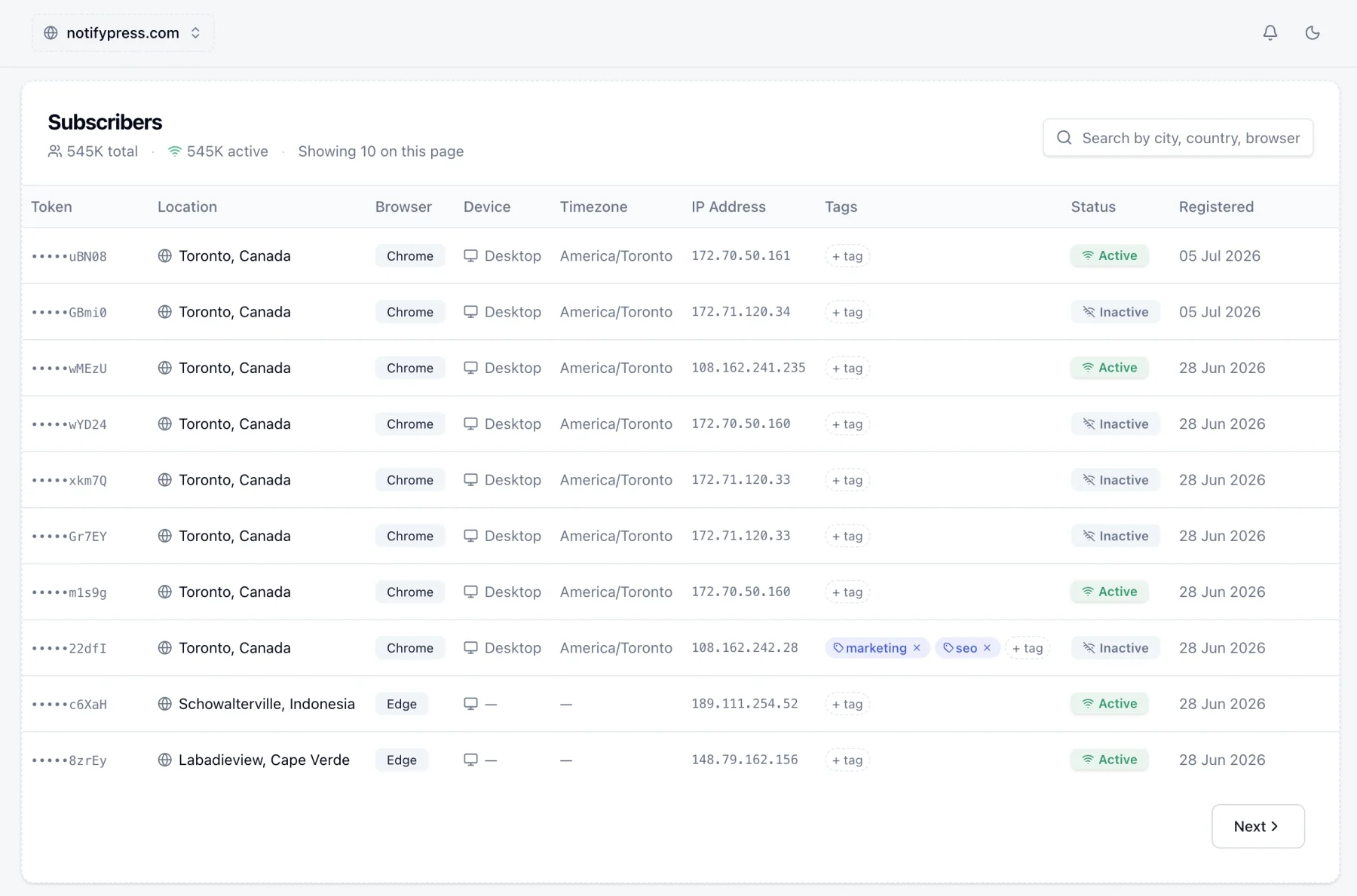
What’s on a subscriber
Everything except the last row arrives on its own, the moment someone subscribes.
Where they are
Country and city, read from the browser's own timezone at opt-in rather than from an IP lookup. Country is what segments filter on; city is there to read.
What they are using
Browser and device: Chrome, Firefox, Safari, Edge or Opera, on desktop, mobile or tablet. Both are segment dimensions, so no setup is needed to use them.
Whether you can still reach them
An Active or Inactive badge per row, and the reason behind it: unsubscribed, token expired, or token rejected. A count you can trust is worth more than a big one.
Whatever you decide to record
Your own tags, typed as category, interest or custom. This is the column that carries everything the browser cannot tell you.
The push token itself is shown masked, and never has to leave the dashboard. The REST API refers to a subscriber by that token when you need to act on one from your own code.
From opt-in to audience
They opt in
A visitor accepts the browser prompt and the row is created, with the moment of consent recorded against it, which is the record you want if anyone ever asks how a subscriber ended up on your list.
You tag them
Apply a tag from the subscriber list, from an automation's add-tag step, or through the REST API when something happens on your own site. Tags are per site, and named however your business thinks about people.
The tag becomes an audience
Saved segments filter on tags alongside country, device and browser, so the label you applied last month is a targeting option on every campaign from then on.
The number in front of you means something
Push tokens die quietly. A visitor clears their browser data, or a token simply ages out, and most tools go on counting them. Here, every send reports back: a token the browser has expired or rejected is deactivated with the reason recorded, campaigns only go to active subscribers, and long-inactive rows are eventually cleared out altogether.
Nothing to run, and nothing to reconcile. It just means the audience size you see before you press send is people, not history.
Turn those tags into an audience
A tag on its own is just a label. A segment is a saved filter that combines your tags with country, device and browser. Built once, then offered as a targeting option on every campaign you compose.
Questions, answered.
Start collecting subscribers today.
Free forever for up to 300 subscribers.