Features · Scheduling
Set it once, it keeps going.
Schedule a push notification for the moment it will land best, or set it to repeat on its own (a weekly digest, a monthly reminder) without touching it again.
app.notifypress.com
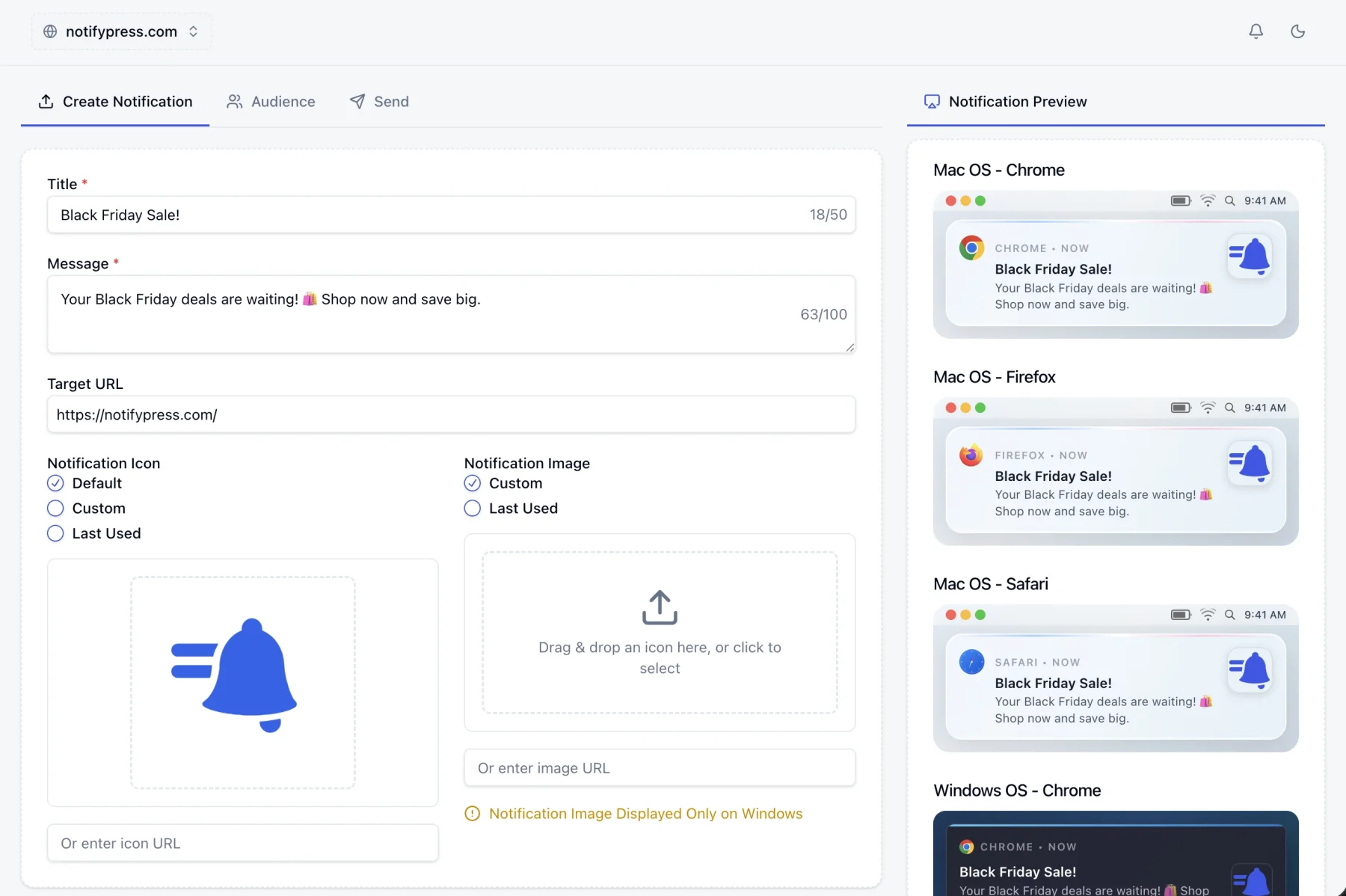
What scheduling gets you
The point is not sending later. It is writing when you have time and sending when it matters.
Write it now, send it then
A campaign for Monday morning gets written on Friday afternoon. It waits as a scheduled draft, and everything about it stays editable right up until it fires.
Daily, weekly, or monthly
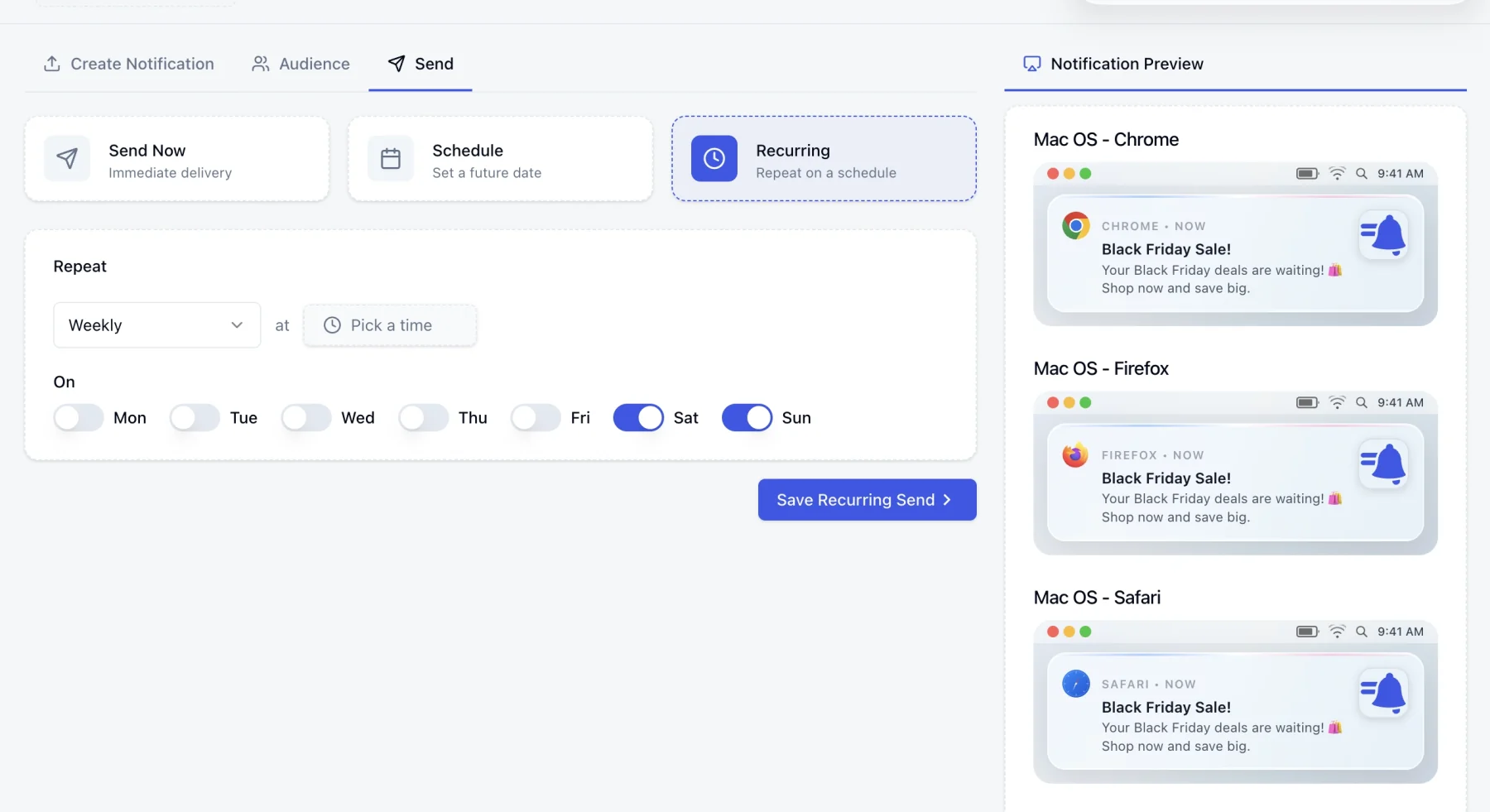
A weekly digest every Tuesday and Thursday, or a reminder on the 1st of the month. Weekly takes any combination of days, so a weekdays-only send is five checkboxes.
Cancel without losing the work
Stopping a scheduled send, or ending a recurring series, returns the campaign to a pending draft. The repeat settings are kept, so restarting it later is one form away.
One running total
A recurring campaign accumulates its views and clicks across every occurrence into a single ongoing figure, rather than reporting each run separately.
Three ways to send
The last step of the composer, once the message is written and the audience is picked.
Send Now
Immediate delivery. The campaign is queued the moment you press it and starts going out in seconds, with live progress in the dashboard while it does.
Schedule
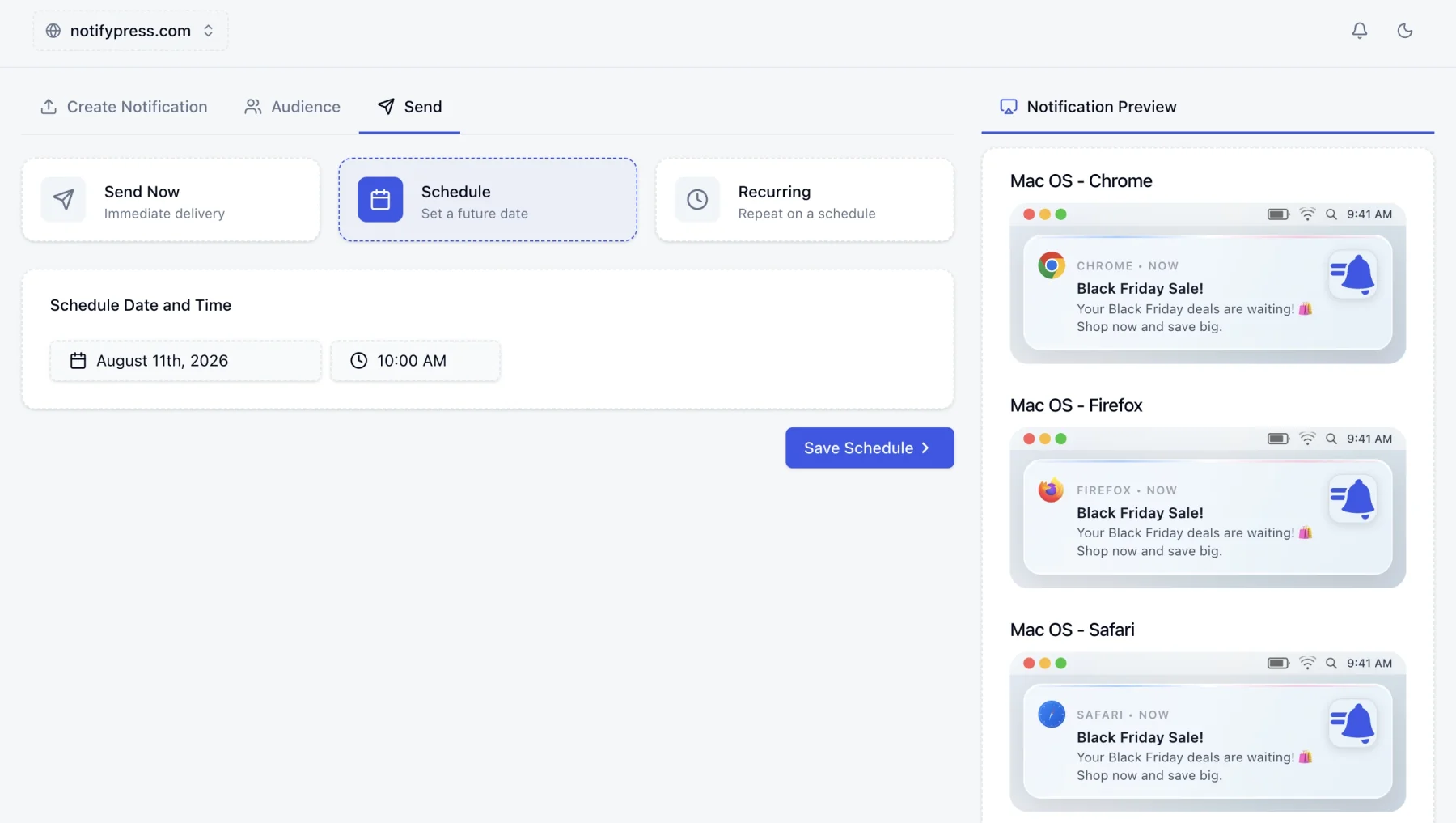
Set a future date and time. The campaign sits as Scheduled until it fires, and stays fully editable in the meantime. Change the message, change the audience, or cancel it outright.
Recurring
Repeat on a schedule. Pick daily, weekly with the specific days you want, or monthly on a given date, and set the time it should go out.
app.notifypress.com
app.notifypress.com
A scheduled campaign is still a draft
Queueing something for Tuesday does not freeze it. A scheduled campaign can be reopened and rewritten, retargeted at a different segment, or cancelled back to a plain draft, and a recurring series keeps its repeat settings when you stop it, so it can be restarted rather than rebuilt.
Want it to send itself instead?
A schedule fires on the clock. An automation fires on a person. When someone subscribes, or when your own site reports that they did something. If the trigger is a behaviour rather than a date, that is the tool.
Questions, answered.
Stop remembering to press send.
Free forever for up to 300 subscribers.